Bottom sheet
Selection and readingMAGAZINE LUIZAFollowing
Case studiesMZ Private
MZ Private is a secure document-sharing workspace where a listed company's investor relations team keeps sensitive documents and shares them, internally and with investors and stakeholders. I designed the experience end to end: who gets in, who sees what, and a record of everything that happens, while keeping it as easy to use as the tools IR already knows.
MZ Private · DocumentsDemo data
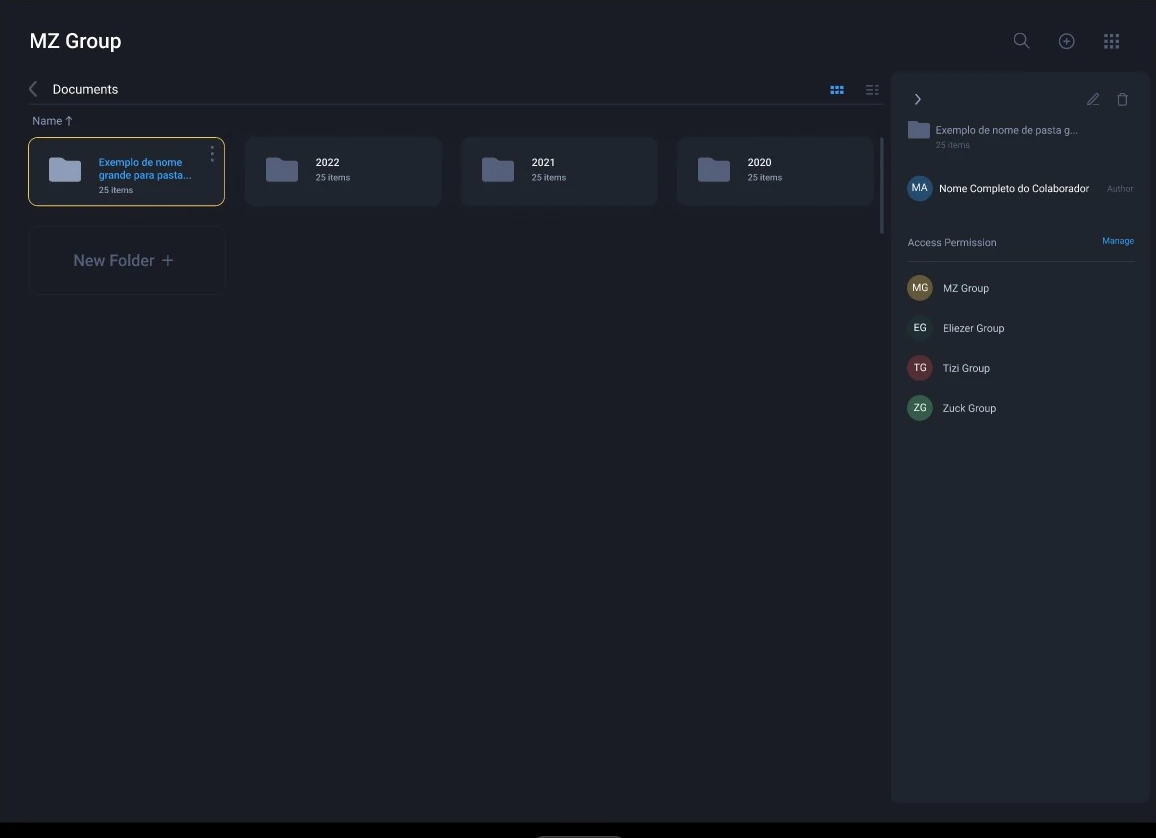
In listed companies, the investor relations team handles information that moves share prices before the market sees it: results before release, material facts, and board and shareholder meeting materials. MZ Private gives that team a secure document-sharing workspace to keep these documents and share them with the right users, inside the company and with investors and stakeholders.
In 2023, the stakes around this information were high. CVM Resolution 44, in force since September 2021, requires officers and employees to keep material information confidential until it’s disclosed, and to make sure their subordinates and trusted third parties do the same, with joint liability if they don’t. If the information escapes the company’s control, it must be disclosed immediately. At the same time, Brazil’s data protection law (LGPD) moved from text to enforcement: sanctions have applied since August 2021, and in 2023 the ANPD published its sanctions regulation, in February, and issued its first fine, in July.
is how the CVM ranked the loss of control over undisclosed material information in its 2023–2024 supervision plan, its top priority.
of data breaches involve the human element, and sending something to the wrong person causes 43% of breaches due to error, according to Verizon’s 2023 report.
was the average cost of a data breach in Brazil in 2023, according to IBM.
Sources: CVM Resolution 44, arts. 6 and 8 · CVM risk-based supervision plan 2023–2024, 2023 report · ANPD’s first fine, via Clyde & Co · Verizon DBIR 2023 · IBM Cost of a Data Breach 2023, via Security Leaders.
Before MZ Private, these documents traveled by email, shared drives, and personal devices. Every forward created a copy no one controlled. Access depended on remembering who had received what. And when something leaked, there was no record to answer the question the rules imply: who had access?
The product was born from that context, without a formal discovery phase, so the rules of access had to be right from the start. The challenge was to make control the default without making sharing hard: an IR team should share as easily as in the tools they already used, while the product made sure every document had a defined audience and every action left a trace.
From June to November 2023, I was the UX/UI designer on MZ Private, in a squad with 3 senior developers and a PO.
Nine decisions shape how MZ Private balances ease and control.
Permissions are assigned to groups rather than individual users. To share a folder or a file with someone, that user has to be in a group, and the group gets the access. Groups give much more control over permission levels: the board, a set of investors, and the internal team each get their own level, and changing a group once updates everyone in it.
Members, invitations, and groupsDemo data
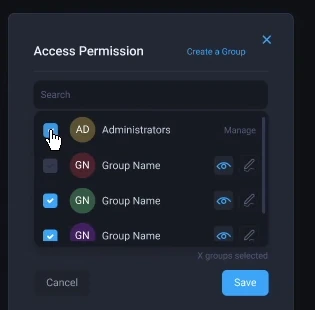
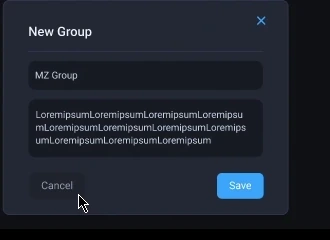
Each group gets one of two permissions on a folder or file: view, to open and read, or edit, which also allows renaming, deleting, and granting access to others. Two clear levels separate the users who consume information from the users who manage it. Access is set group by group in the same window, which also creates a new group on the spot when the right one doesn’t exist yet, with a required name and description, so sharing never hits a dead end.
Access by group: view or edit
A new group, without leaving
Sharing a folder by groupDemo data
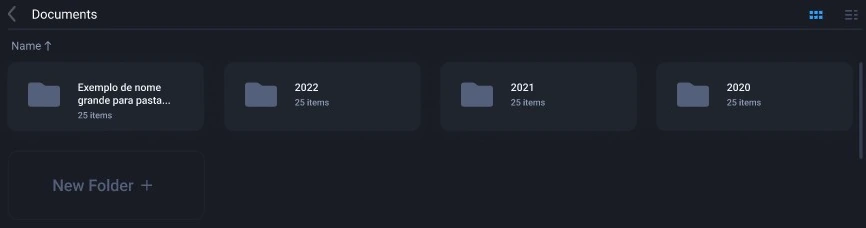
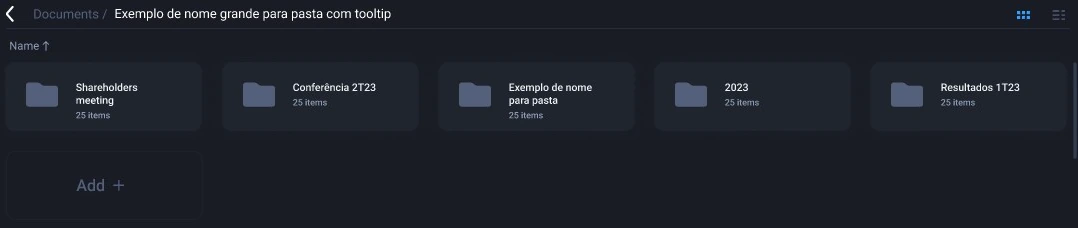
The first level, “Documents,” holds only folders, so every file lives inside a folder with predefined access permissions. From the second level on, users can add both folders and files, which is why “New Folder” becomes “Add.” Breadcrumbs show the path, always starting at “Documents,” and take users back to any level in one click; long names get tooltips.
Level 1: only folders
Level 2 and deeper: folders and files
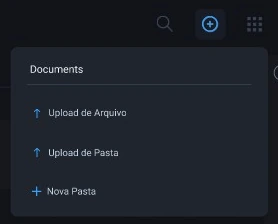
The + in the top right corner adds what makes sense where the user is. In “Documents,” it uploads files or folders, or creates a folder at the current level. In “Members and Groups,” the same + adds a member or creates a group. One place to look, and an action that always fits the screen.
The + in “Documents”
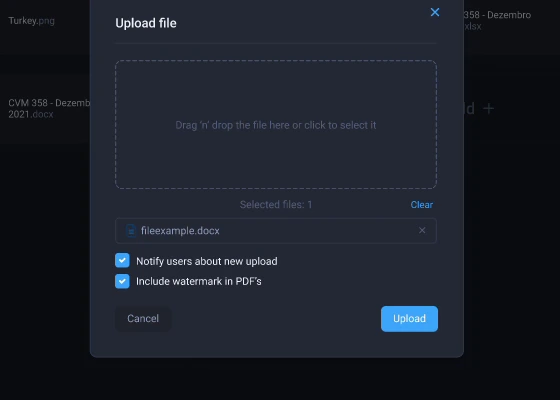
The upload window
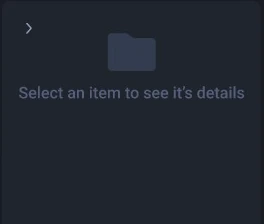
Folders and files share a details panel on the right: who created the item, the groups with access, and actions to rename, delete, and manage access. When a level opens, the panel animates in so users always have quick, practical access to the folder’s or file’s information, especially the users who manage access. With nothing selected, its empty state prompts users to select a file or folder. Information about any folder or file is always one click away, without leaving the list.
Empty state
With an item
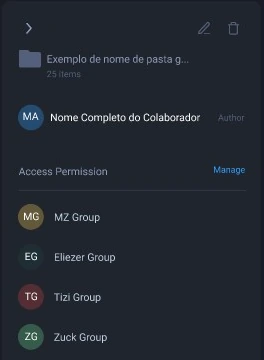
Documents: views and the details panelDemo data
Grid cells don’t have room to show every action, so the grid uses a kebab menu: “Open,” “Details,” “Share,” “Copy link,” and “Delete.” List rows have room, so extra actions, like details and sharing, appear right on hover. In both, double-click opens the item, as in Google Drive. The same needs, solved the way each view’s space allows.
Grid: kebab menu
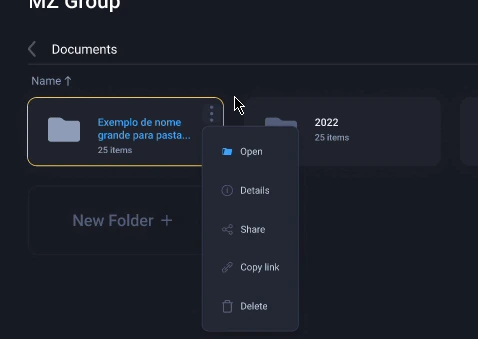
List: actions on hover

Files open inside the product, in viewers for PDF, video, images, audio, and text, with download always available at the top. Users read, watch, and listen without needing a copy on their machine first.
Viewing files in the productDemo data
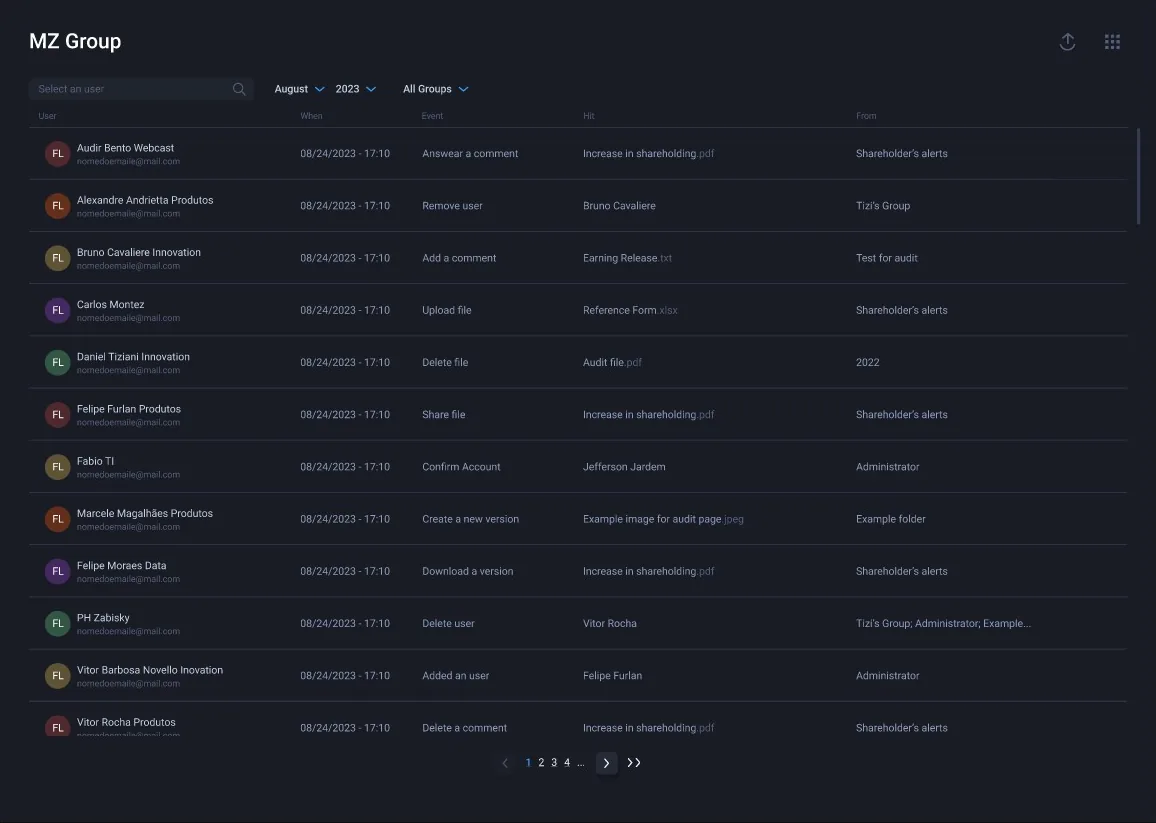
Administrators see every event in the app: who did it, what they did, which file it refers to, where that file is, and when. Replying to a comment, sharing or deleting a file, creating or downloading a version, adding or removing a user: it all lands in one list, filtered by period and group, searchable by user, and exportable in full.
When a stock trades atypically, CVM Resolution 44 asks the investor relations officer to question the people who had access to the information. This list is where that starts.
Audit · administrators onlyDemo data
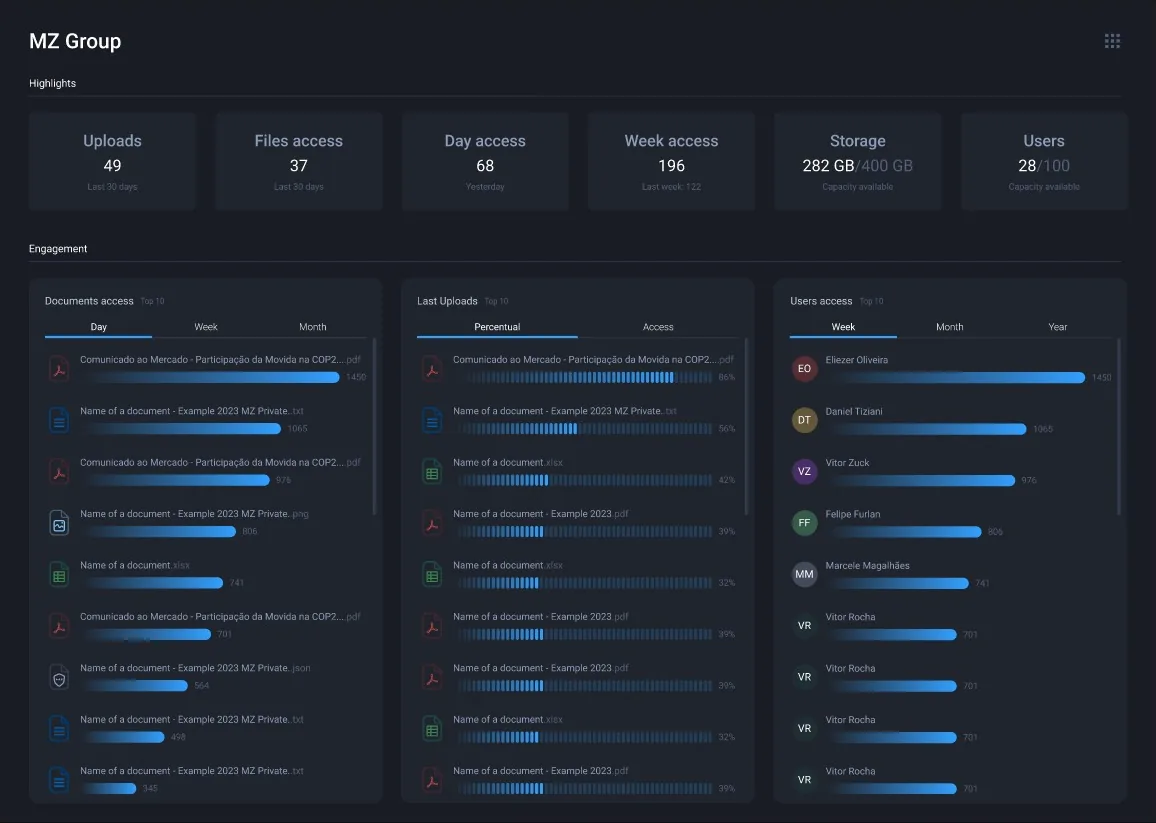
Analytics gives IR a view of how the files it makes available to investors and stakeholders are performing. Usage highlights show uploads, files accessed, and daily and weekly access. Limits show storage and users against the plan, since each plan sets both limits. The most accessed files rank documents by day, week, or month, and engagement shows how each recent upload was received, as percentages or access counts, next to the most active users.
Analytics · administrators onlyDemo data
Security needs to be visible and in users’ hands, not buried in settings no one opens.
Profile and securityDemo data
Together, the rules keep the room safe without asking users to remember anything.
Every file belongs to an audience decided before it arrives.
Permission levels stay clear and change in one place.
Most of the audience can read without being able to change, delete, or reshare.
Administrators always retain access to the most sensitive views.
No one has an account without defined permissions.
The audience hears about new files from the product, and copies that travel are marked.
A leaked password alone doesn’t open the room.
The answer to “who had access?” is in the product.
MZ Private uses the MZ Design System. It was the first product to adopt it, a design system I created and maintained for other apps as well.
Two dark surfaces carry the interface; every other color has a single job.
Surfaces and text
Actions and states
File types
One family, from page titles to file metadata.
Buttons and links
Icon buttons
Fields
PIN code input
Toggles
Checkboxes
Tabs
Period
Chips and avatars
Grid cell
Menu
List cell
Dialogs
This folder and all its content will be permanently deleted
Folder nameWhen sharing safely works like the tools users already know, they stop looking for ways around it.
If the right group doesn’t exist yet and the flow stalls, the shortcut is granting access to a bigger group than needed. Creating the group inside the permission window, with a required name and description, keeps every grant within the rules.
Because edit also lets a group grant access to others, it’s a management permission, not a content one. Splitting view from edit makes clear who only consumes information and who decides who else can see it.
In a space for sensitive files, an upload is already a share: the file inherits the folder’s audience. That’s why the first level holds only folders and the + always acts on the current level, with the path in view, so users know who will see a file before it goes in.
Notifying the audience by email and watermarking the PDF are choices made at upload, for that file, not a global setting that applies to everything.
With an audit log, “who had access?” becomes a filter instead of a hunt through inboxes.
Next case: arOS 2.0, conversations that convert.
Read the arOS case